
Playground help
Find a tool
Start with Start integrating on the homepage, or use the integration paths for an SDK, coding agent, or WooCommerce store. SDK Playground prepares orders; API reference groups callbacks, schemas, and bank-specific contracts. Long guides have an On this page section list. On a narrow screen, open Menu; Escape closes it. Keyboard users can choose Skip to content.
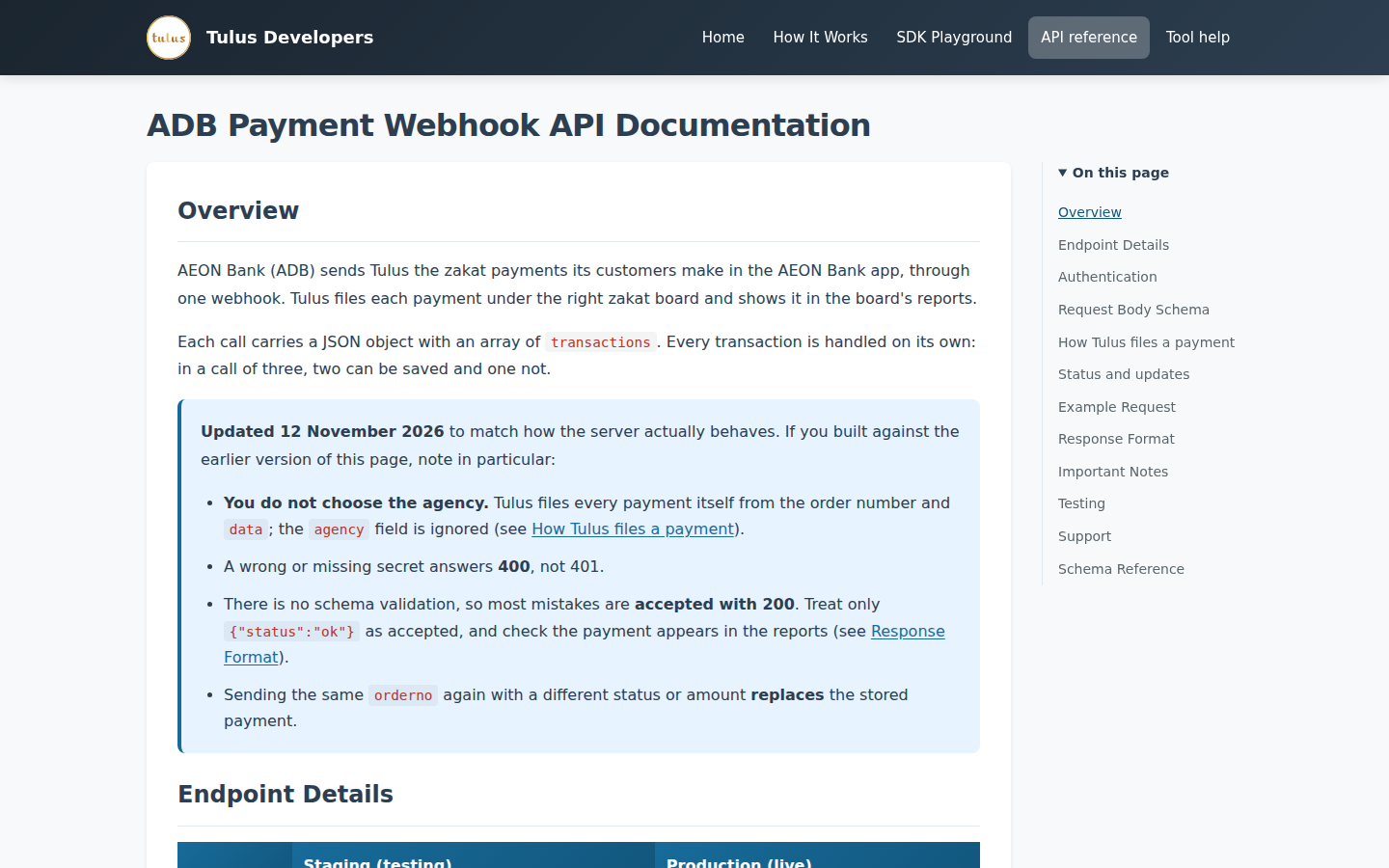
The figures use synthetic examples. Your agency access and gateway permissions still determine which requests are accepted.
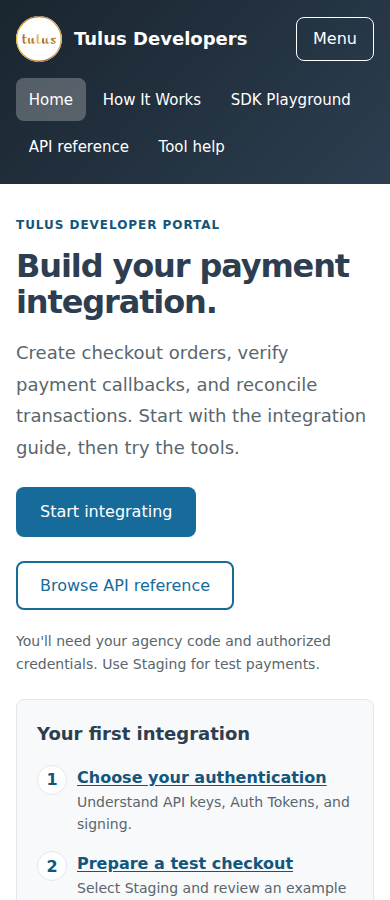
Review an order before checkout
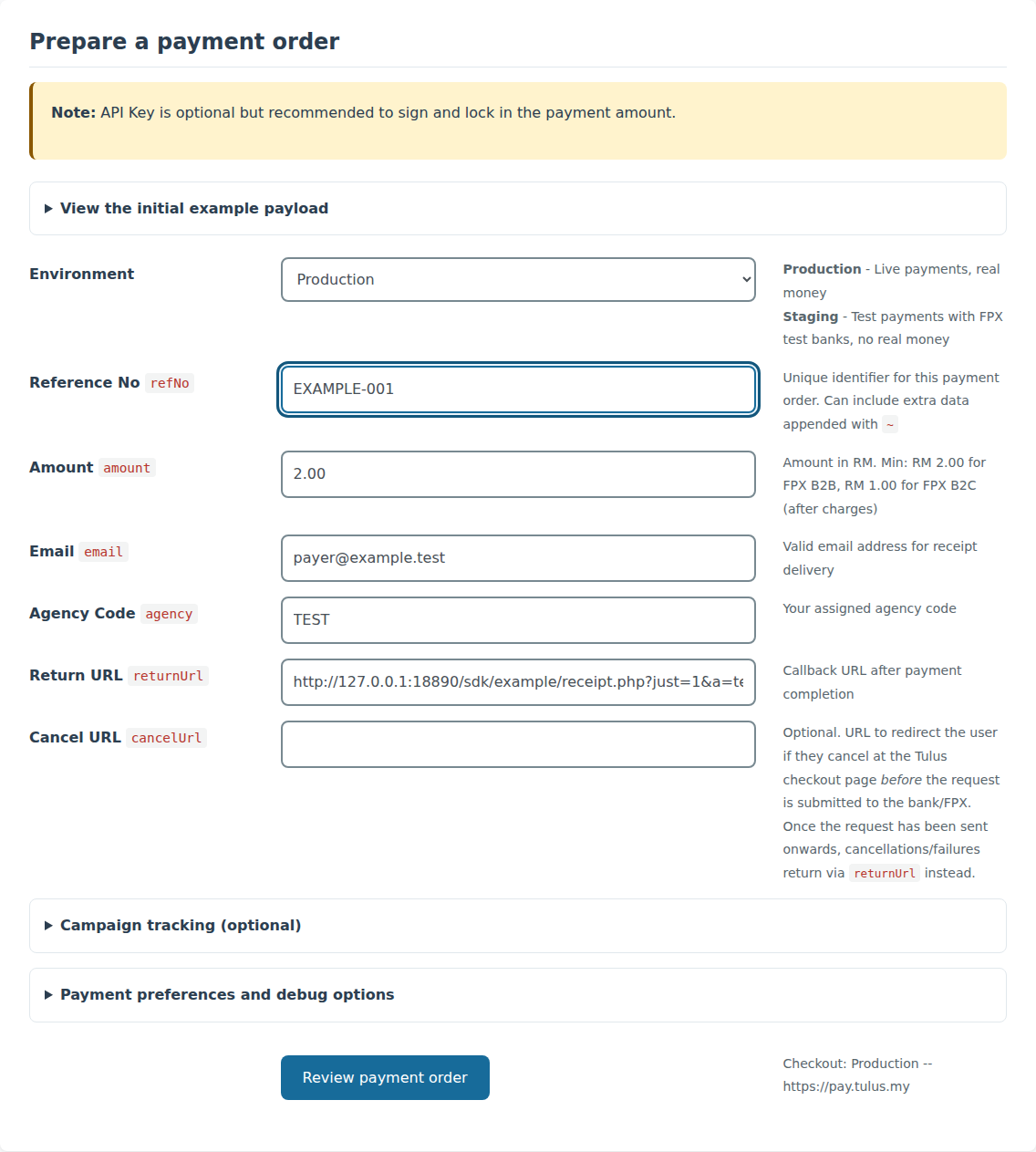
- Open SDK Playground. Choose Staging for FPX test banks without real money. Production uses live payments and real money.
- Enter your reference, amount in MYR, payer email and agency. Correct any inline email error. Verify the destination shown beside the action.
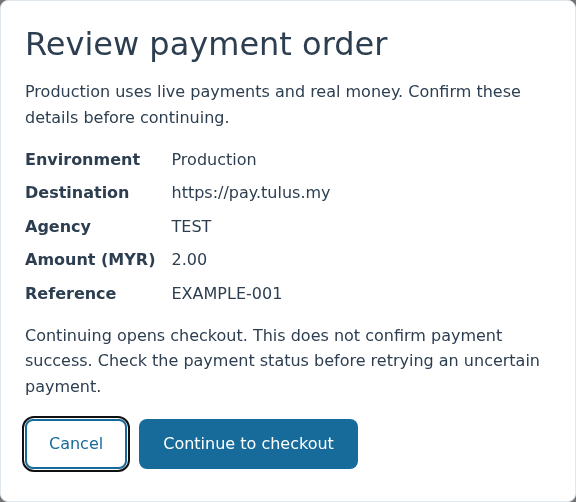
- Open Campaign tracking (optional) or Payment preferences and debug options only when needed. Collapsing them keeps their values in the order. Then choose Review payment order. Check the environment, destination, agency, amount and reference.
- Choose Cancel or Escape to return to editing. Continue to checkout sends the order to the displayed destination.
Opening checkout does not mean a payment succeeded. Verify its status before retrying an uncertain payment. If order details change during review, review the updated details before continuing.
The separate Query payment reports form uses the reporting service and its own agency field. Its Auth Token is masked; use only authorized credentials and never put them into screenshots or shared examples. Changing the checkout environment does not switch the reporting service.
Copy examples and check signatures
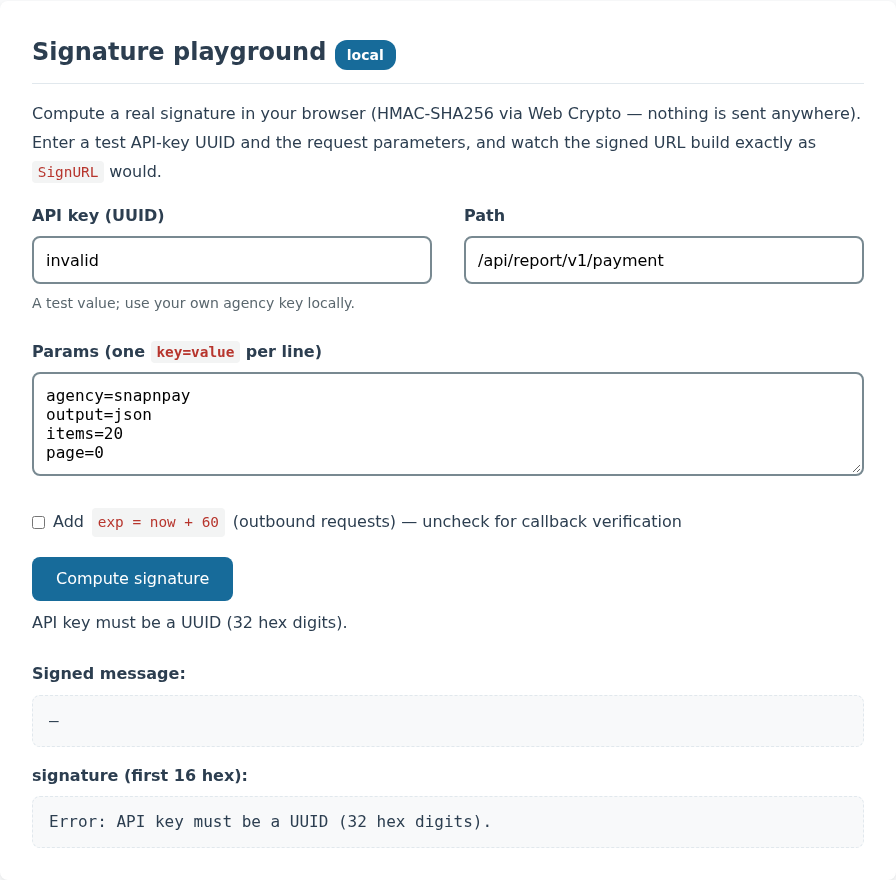
In How It Works, choose a language example and use Copy. If copying fails, select the code and copy it manually. The signature calculator works locally; computing a signature does not submit a payment. Correct an invalid key in place and choose Compute signature again.
Recover from an unreadable customization reply
The email customization tester sends the displayed sample data to the endpoint you enter. Use synthetic records. Call endpoint waits for the reply; inputs stay locked while that request is running.
If the browser cannot read the reply, the endpoint may already have received the request. It is not automatically repeated. Choose Send again for raw response only if repeating it is safe. Changing inputs retires that raw retry; call the endpoint again to test the new values. A successful merge preview does not mean an email was sent.